
I’ll be honest with you.
The first time someone told me to “just install the APK,” I had no idea what they were talking about. Sounded like something only tech guys do. Something that would probably break my phone or get me in trouble.
Turns out I was completely wrong.
It took me about 4 minutes. The kid was playing Roblox before I even put my shoes back on.
Now I’ve helped maybe a dozen people do the same thing. Friends. Family. A lady from my neighborhood whose son kept crying because his tablet wouldn’t download it from Play Store. Same fix every time. Takes less time than making tea.
This guide is me explaining it the way I explain it to people face to face. Simple. No drama. No unnecessary warnings every two sentences. Just the actual thing.
What Is an APK and Why Should You Care
You know how when you get an app from Play Store, you just tap install and it shows up on your phone?
Behind the scenes, Play Store is downloading a file. That file is the APK. It’s basically the app in a compressed package. Play Store downloads it, installs it, and deletes the visible part so you never see it.
When you install an APK yourself, you’re doing that same thing. Manually. The app you get is the exact same app. Not a copy. Not a fake. The same one.
Google didn’t invent this as some advanced feature either. Android has supported manual APK installation since the very beginning. It was always meant to work this way.
Why Didn’t Play Store Just Work in the First Place
This is what confuses people the most.
Play Store has a compatibility check built into it. When you search for an app, it checks your device against a list. If your phone isn’t on the approved list — for whatever reason — it just says not available or not compatible.
Sometimes this is legitimate. The app genuinely won’t run on that hardware.
But a lot of the time it’s wrong. Budget phones especially get filtered out even when they’re perfectly capable. The developer just didn’t add that specific device to their compatibility list. Doesn’t mean the app won’t work. Just means the developer hasn’t gotten around to testing it officially.
Other situations where Play Store fails:
Roblox isn’t available in every country. Some regions just don’t have it. Nothing you did wrong. Just how regional licensing works.
Updates roll out slowly. Play Store pushes updates in batches. Your area might get it three days after someone in another country. If your friend has a feature you don’t, this is probably why.
No Google account on the device. Some shared tablets, kids’ phones, older devices — they just don’t have Play Store set up. APK works without any of that.
The Safety Part — Read This Once and You’ll Be Fine Forever
I’m not going to scare you with a wall of warnings. That’s not helpful.
Here’s the actual risk and how to avoid it completely.
The risk is not the APK format. The risk is downloading from a garbage website that uploaded a fake or infected version of the file.
That’s it. That’s the whole risk.
So how do you avoid it? You check three things before downloading anything.
Developer name. When you install the APK and the install screen pops up, it shows the app name and developer. Should say Roblox Corporation. Exactly that. Any other name — even something close like “Roblox Official” — means it’s not the real file.
File size. Real Roblox APK is somewhere between 70MB and 120MB. If a site is offering a “Roblox APK” that’s 8MB or 12MB, it’s not Roblox. Delete it.
Where you’re downloading from. Sites that have been around for years, have real user reviews, and show up in tech forums when you search them — those are generally trustworthy. Sites that appeared recently, have no reviews anywhere, and feel like they were made in an afternoon — skip them.
One more thing. If a site tells you to complete a survey before your download unlocks, close the tab. That’s not how real APK sites work. Ever.
And modded APKs — the ones that say “unlimited Robux” or “god mode” — don’t touch those. Ever. I don’t care how convincing the YouTube video is. Those files are almost always infected. And even if they’re not, Roblox will ban the account permanently.
The Install — I’ll Do It Step by Step
This works on Samsung, Xiaomi, Redmi, Realme, Oppo, Vivo, Tecno, Infinix, OnePlus — basically any Android phone made in the last several years.
Downloading the file
Open Chrome. Go to whatever APK source you’ve decided to use. Find the latest Roblox version. Tap download.
It’ll land in your Downloads folder. Takes a minute or two depending on your internet.
Giving your phone permission to install it
Android has a setting that blocks APK installs by default. Makes sense as a security measure. You just need to turn it on for this one install.
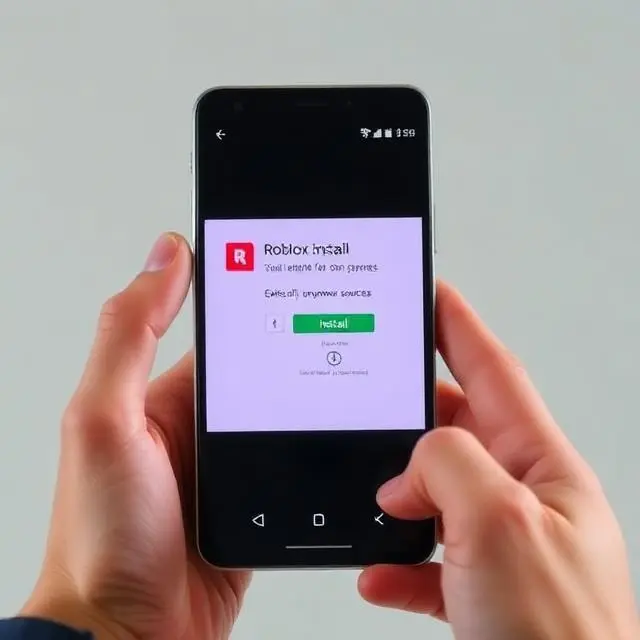
On newer phones — Android 8 and above, which is most phones now — you don’t need to go digging through settings. When you tap the APK file to open it, a popup appears on its own saying something like “Chrome is not allowed to install from unknown sources.” Tap Settings right there in that popup. Toggle on “Allow from this source.” Hit the back button. Done.
On older phones you go to Settings, then Security, and flip the Unknown Sources toggle.
After the install you can go turn it off again if it bothers you. Doesn’t matter either way honestly.
Actually installing it
Go to your Downloads folder. Tap the file.
An install screen comes up. It shows you the app name and a list of permissions. Scroll through them quick.
Roblox legitimately needs camera, microphone, and storage. Those make sense for a game.
What it should NOT be asking for is access to your contacts, your SMS messages, or your call history. If you see those permissions listed, that APK is not the real one. Stop right there.
Normal permissions? Tap Install. Give it 30 to 60 seconds.
Open it up
Tap Open when it finishes. Roblox launches exactly like it does from Play Store. Log in with your account or make a new one.
You’re done.
Making a New Account — Don’t Rush This Part
A lot of people just blast through signup and then regret it later. Spend two extra minutes here.
Roblox asks for your birthday at the very start. Enter the real one, especially for kids. The platform uses age to automatically set safety restrictions. Younger accounts get stronger filters applied automatically.
Username — pick something that has nothing personal in it. No real name. No school. No city. No birth year. I’ve seen kids use usernames like “AhmedKarachi2016” and that’s just handing out personal information to strangers. Something made-up and random is better.
Password — make it strong. Letters, numbers, a symbol. Don’t use the same password you use for Gmail or anything else.
Add an email. You need it for password recovery. Without it, if you forget your password, the account is basically gone.
Two-step verification — turn it on. It’s in Account Settings under Security. After this, logging in needs both your password and a code sent to your email. Someone steals your password, they still can’t get in. 30 seconds to set up. Worth it.
For Parents Who Are Nervous About All This
Completely understandable. Strange app from outside Play Store, chat features, in-game purchases — I get why that feels like a lot.
Here’s what you can actually control.
Go to Settings inside the app, then Privacy. Turn on Account Restrictions. This is the big one. It limits your child to age-appropriate games only and turns off most chat. One toggle. Makes a significant difference.
Still in Privacy — find “Who can chat with me.” Set it to Friends or No One. For younger kids honestly just set it to No One and revisit it when they’re older.
Go to Account Settings and create a parent PIN. Four digits. This locks all the settings you just changed. Your child cannot undo them without knowing the PIN.
On the Roblox website — not the app, the website — you can set a monthly Robux spending limit and require PIN confirmation before any purchase goes through. No more surprise charges.
For screen time, use your phone’s built-in controls. On most Android phones it’s under Settings → Digital Wellbeing. Set a daily limit for Roblox specifically. When the limit hits, the app stops working until the next day.
And you can check your child’s chat history from the parent section on roblox.com. Not surveillance — just staying aware of who they’re talking to.
It’s Running Slow — Here’s What to Do
Roblox isn’t a heavy game. But budget phones need a little help.
Inside Roblox while you’re in a game, tap the menu icon. Find Graphics. Switch to Manual mode. Pull the slider all the way down to level 1 or 2. This is the single biggest performance fix for slower phones. The game looks slightly less pretty but runs dramatically better.
Before playing, close everything else running in the background. Hit your Recent Apps button and swipe all of them away. Roblox needs RAM. Other apps compete for it.
Make sure you’ve got at least 1 or 2GB of free storage space on your phone. Roblox downloads game assets locally each time you join a new game. No space means no loading.
Use Wi-Fi when you can. Mobile data technically works but it’s less stable. Bad connection in Roblox means your character teleports around and you disconnect randomly. Not fun.
And restart your phone once in a while. Once a week if you play regularly. Clears out accumulated junk and usually makes a noticeable difference.
Something Went Wrong — Fix It Here
Says “App not installed”
There’s already a Roblox installation on the phone conflicting with the new one. Go to Settings → Apps → Roblox → Uninstall. Then try the APK again.
Crashes after a few minutes
Clear cache first. Settings → Apps → Roblox → Storage → Clear Cache. Restart and try again. Still crashing? Lower the graphics inside the game. Still crashing after that? Your phone probably has less than 2GB RAM and is struggling. Close literally every background app before launching.
Stuck on loading screen
Connection issue almost every time. Switch from mobile data to Wi-Fi or vice versa. Restart your router if you’re home. If it’s still stuck, go to Settings → Apps → Roblox → Storage → Clear Data. This logs you out so have your password ready.
Can’t log in
Roblox usernames are case-sensitive. Double-check capitalization. If you’re certain the details are right, tap Forgot Password on the login screen and reset through email.
“Update required” but no update shows up
Your APK version is too old. Grab the latest one from your source and install over the existing version. Everything in your account — friends, inventory, progress — stays intact because it all lives on Roblox servers not your phone.
Black screen when opening
Usually old devices or very low RAM phones. Try reducing screen resolution in Display Settings. Also check that your Android version is at least 5.0.
Keeping It Updated Going Forward
Once a month or so, check if there’s a newer version out.
Download the new APK from your source. Install it the exact same way you did the first time. Android replaces the old version automatically.
Your account data is safe. Nothing gets wiped. Updates only change the app files themselves.
New versions usually fix bugs and improve performance so it’s worth staying current.
Before You Download Anything — Run Through This
Developer name says Roblox Corporation — yes? File size between 70MB and 120MB — yes? Version matches current Play Store listing — yes? Source has real reviews and has been around a while — yes? Site asked for survey or extra downloads — if yes, leave APK promises free Robux or cheats — if yes, don’t
All good on the first four and none of the last two? You’re fine.
When to Just Walk Away
Some situations aren’t worth the risk.
A file started downloading by itself without you tapping anything. Drive-by download. Delete it immediately.
Someone sent you an APK over WhatsApp or Telegram. Even from someone you know. Their phone or account might be compromised. Don’t install APKs from chat messages.
The permissions screen shows contacts, SMS, call history. That’s not Roblox. Stop.
You can’t find any reviews or history about the site anywhere online. If a source has zero presence outside its own website, that’s a problem.
The Myths That Keep People From Doing This
“APKs give you viruses.”
The file format doesn’t give you anything. A PDF can carry malware too if it comes from the wrong place. The risk is always about where the file came from, not what format it’s in.
“My phone will break.”
No it won’t. Installing a bad app means you uninstall it and move on. There is no APK in existence that permanently damages a phone just by being installed.
“Roblox will ban me.”
Roblox cannot see how you installed the app. Their servers just see an account logging in. Nobody gets banned for APK installation. People get banned for cheating in games or violating community rules.
“It’s too complicated.”
You just read the steps. There were four of them. If you can send a voice note on WhatsApp you can install an APK.
Last Thing
I wrote this because the guides that already exist are either way too technical or way too cautious to be useful.
APK installation is fine. Android was literally designed for it. Used with a clean verified file from a proper source, there’s no real risk here.
Set up the parental controls if it’s for a kid. Use the checklist before every download. Keep the app updated.
Everything else is just playing the game.
Go have fun.